FF Beta Testing APK Not Installing?
10 Fixes That Actually Work (2026)
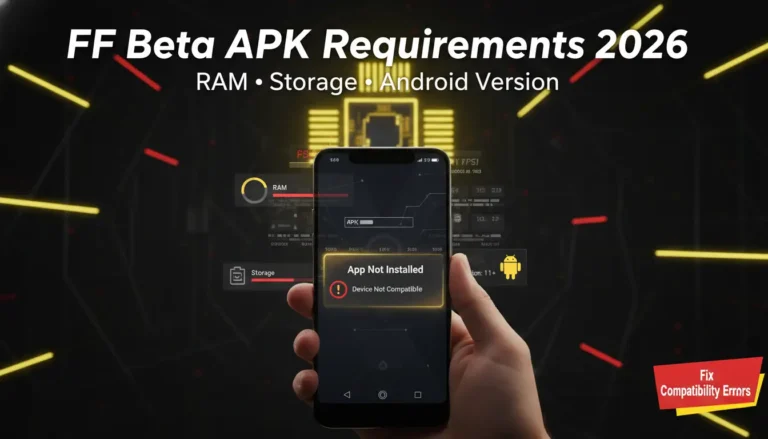
You waited days for registration to open. You got selected. You downloaded the APK. And now — the phone just says “App not installed.” Or worse, you get that dreaded “There was a problem parsing the package” message and the install never happens.
It is frustrating. Especially when you know the code is waiting and you just want to get in.
The good news is that every single one of these errors has a fix. None of them mean your phone is broken. They are all caused by one of a handful of reasons — and once you know which one you are dealing with, the fix takes less than two minutes.
This guide covers 10 real fixes for every type of FF Beta Testing APK installation problem on Android in 2026. Find your error below and follow the steps.
⚡ In a hurry? The most common reason FF Beta Testing APK fails to install is that Unknown Sources is turned off in your Android settings. Jump to Fix #1 if you have not checked this yet — it solves the problem for most people within 60 seconds.
First — Find Your Error in This Table
Different errors need different fixes. Find your exact error message below, then jump to the right fix:
| Error You See | Most Likely Cause | Go to Fix |
|---|---|---|
| “App not installed” | Unknown Sources disabled or storage full | #1 or #3 |
| “There was a problem parsing the package” | Corrupted download or wrong Android version | #2 or #5 |
| Install button grayed out / nothing happens | Unknown Sources disabled | #1 |
| “Installation blocked” | Play Protect or antivirus blocking install | #4 |
| Game crashes right after opening | Low RAM, background apps, or outdated Android | #6 or #7 |
| “Activation code invalid” | Expired code or wrong account | #8 |
| Login error / “Account not found” | Wrong Google or Facebook account | #9 |
| “Server not available in your region” | Region restriction or server closed | #10 |
The 10 Fixes — Step by Step
This is the number one reason the APK fails. Android blocks all apps downloaded outside the Play Store by default. You have to manually allow it. This takes about 30 seconds.
For Android 7 and below:
- Open Settings
- Tap Security
- Find Unknown Sources and toggle it ON
- Try installing the APK again
For Android 8 and above (per-app permission):
- Open Settings → Apps
- Find your browser or file manager (whichever you used to download)
- Tap Install Unknown Apps
- Toggle Allow from this source to ON
- Go back and tap the APK file to install
If you see a parse error, the most likely reason is that the APK file got corrupted during the download. This happens more often than people think — a dropped Wi-Fi signal or a background interruption can silently break the file.
- Delete the APK file you already downloaded — do not try to install it again
- Go back to our download page and download it fresh
- Use a stable Wi-Fi connection — avoid mobile data for a 438MB file
- Do not switch between apps or lock your screen while downloading
- Once the download completes fully, tap to install
A completed APK download should be exactly 438.69 MB. If your file shows a different size in your file manager, it was not downloaded fully — delete it and start again.
Android will silently refuse to install an APK if you do not have enough free storage. The FF Beta Testing APK is 438.69 MB to download, but it needs additional space to extract and install. You should have at least 2 GB free before starting.
- Open Settings → Storage to check your free space
- Delete old screenshots, videos, or apps you no longer use
- Clear the cache of heavy apps — go to Settings → Apps → [app name] → Clear Cache
- Move photos to Google Photos or a memory card if you have one
- Once you have 2 GB or more free, try the install again
Google Play Protect scans every APK you try to install. Sometimes it flags the FF Beta Testing APK as “unverified” — not because it is dangerous, but because it was not distributed through the Play Store. This can block the install or show a warning screen.
- Open the Play Store app
- Tap your profile icon (top right)
- Go to Play Protect → Settings (gear icon)
- Turn off “Scan apps with Play Protect”
- Install the FF Beta APK
- Turn Play Protect back on after installation is done
This APK is safe — it is the official beta published by Garena. Play Protect flags it only because it is not in the Play Store. Turn Play Protect back on once the install finishes.
The FF Beta Testing APK requires Android 5.0 or higher. If your phone is running an older Android version, you will get a parse error or the install will simply fail. There is no workaround for this — the app will not run on older Android versions.
- Go to Settings → About Phone → Android Version
- Check the number — it must be 5.0 or higher
- If your Android is below 5.0, check if a system update is available: Settings → Software Update
- If no update is available for your device, the APK will not work on that phone
The APK installed fine but the game crashes every time you open it. This is almost always a RAM issue. Beta builds use more memory than the stable game, and if too many apps are running in the background, there is not enough room.
- Close all apps — hold the recent apps button and clear everything
- Restart your phone fully before launching the beta
- Launch FF Beta Testing as the first app after the restart
- Do not run music apps, browsers, or chat apps at the same time
- Your phone should have at least 2 GB RAM free for stable play
If the game launches but freezes, lags badly, or kicks you out during loading, a corrupt cache is often the problem. Clearing cache does not delete your account or progress — it just removes temporary files that have gone bad.
- Go to Settings → Apps → FF Beta Testing
- Tap Storage
- Tap Clear Cache (not Clear Data — that removes the app data)
- Relaunch the game
If the problem continues, try Clear Data — but note this will remove your local game settings and you will need to log in again.
The APK is installed and open, but the activation code you enter keeps getting rejected. This is one of the most common issues players hit at this stage.
- Copy-paste the code directly from your email — never type it manually
- Check that the code has not expired — codes are only valid for 48 hours
- Make sure you are logged into the same account you used to register on the Garena Beta page
- Check that the beta server is still open — once a cycle ends, all codes stop working
- If your code has expired, register again for the next beta cycle
Read our full guide on how to get your FF Beta Testing activation code — it covers the registration process step by step.
The game opens but you cannot log in, or you see “account not recognized.” This happens when you are signed into a different Google or Facebook account than the one linked to your Free Fire profile.
- Log out of the app completely
- Go to your phone’s Google account settings and check which account is active
- Make sure it is the exact account linked to your Free Fire profile
- Open FF Beta Testing and log in again using that account
- If you linked Free Fire with Facebook, use Facebook login — not Google
You see a message that the server is not available in your region or the game just cannot connect. This is a Garena server-side restriction — not a problem with your install.
- Check the official Garena website to see which countries are included in the current beta cycle
- If your region is not listed, you will need to wait for the next cycle when your country may be added
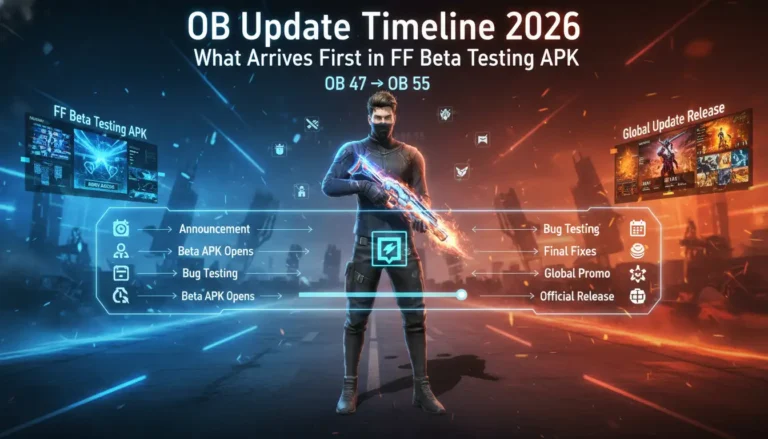
- Also check if the current beta window is still open — the server only runs for 2–3 weeks per cycle, then shuts down until the next OB update
Some players try using a VPN to bypass region restrictions. This can lead to account suspension under Garena’s terms of service. It is not worth the risk — wait for official regional access.
Quick Pre-Install Checklist
Before you try installing again, run through this list. It covers the five most common causes all at once:
- Unknown Sources is ON for your browser or file manager
- Free storage is 2 GB or more — check in Settings → Storage
- Android version is 5.0 or higher — check in Settings → About Phone
- Downloaded file is exactly 438.69 MB — if not, re-download it
- Play Protect is temporarily off during installation
If all five are good and the install still fails, work through the 10 fixes above starting from Fix #2.
Frequently Asked Questions
Conclusion
Almost every FF Beta Testing APK installation error comes down to one of the same handful of causes — Unknown Sources being off, a corrupted download, not enough storage, or the wrong account. None of them are serious. All of them are fixable in a few minutes.
Work through the quick checklist first. If that does not sort it, go through the 10 fixes above until you find the one that matches your exact error. The table at the top will help you get there fast.
Once you are in, head to our homepage for the latest beta features and make sure you have the most recent version of the APK installed.
Which error were you getting — and which fix solved it for you? Let us know in the comments below. It might help the next player running into the same problem.
Need a Fresh APK Download?
If a corrupted file is causing your install error, get a clean copy here. Official, no password, 438.69 MB.
⬇ Download FF Beta Testing APK